 damien@damienkee.com
 Jan 17, 2014
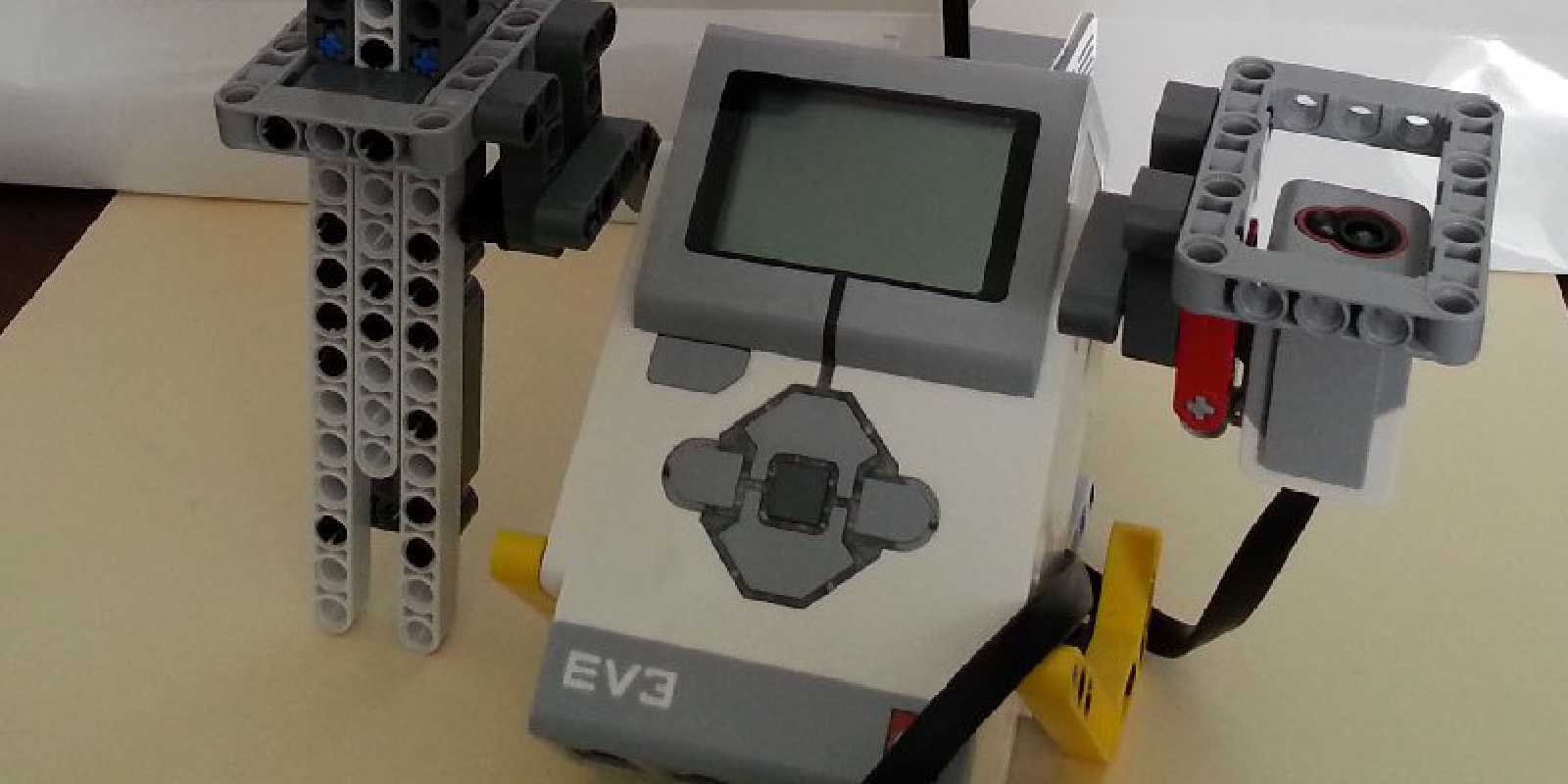
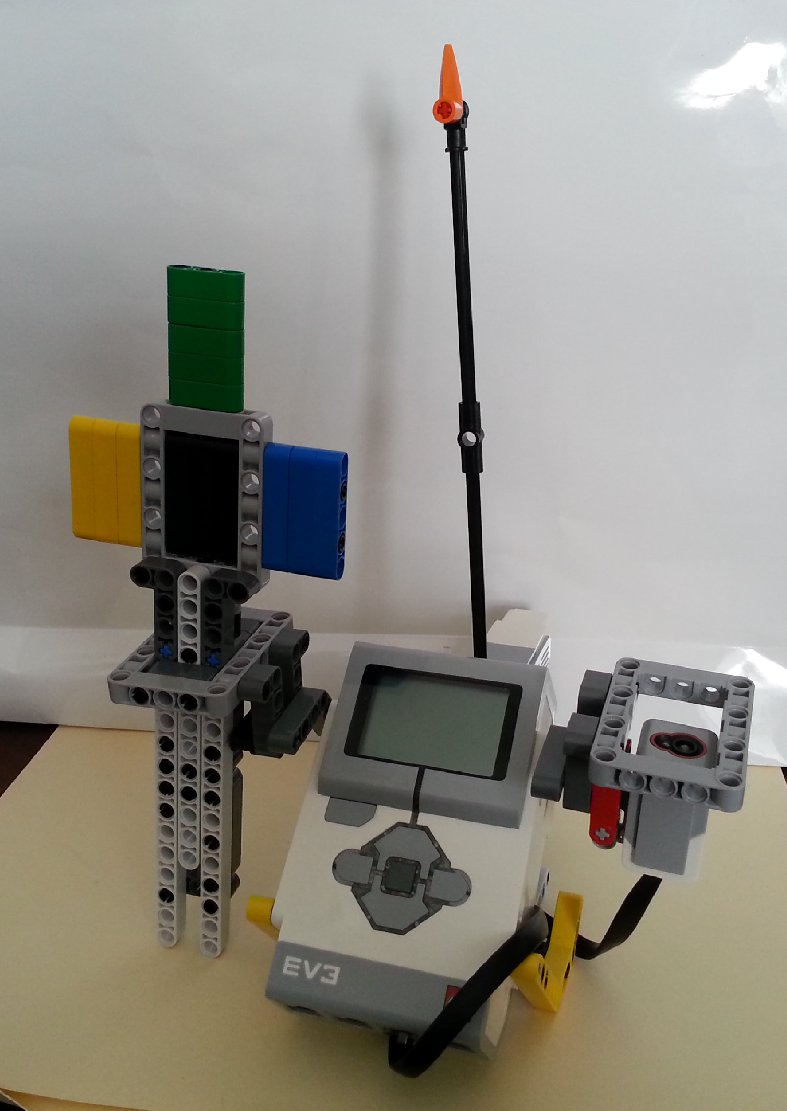
At a recent conference I ran an advanced EV3 workshop where one activity concentrated specifically on the use of arrays. Arrays are a new edition the MINDSTORMS software that the previous NXT-G software didn’t support (at least not cleanly). Arrays allow us to store multiple bits of data all in the one ‘thing’, which makes it easier to access. If you think of Variables as being a suitcase where you can read and write some information, then Arrays can be thought of as a suitcase that has lots of smaller folders inside. Each folder can store an individual piece of information and you can access that information but selecting suitcase, and then the folder inside.
While you can do the same thing with lots and lots of Variables, Arrays make it far cleaner.
The Project:
Create a game of Memory. The EV3 will call out 4 random colours. You then have to show the Colour Sensor the colours in the right order. Get it right and you score a point, get it wrong and you get a disappointing buzz.

The whole project can be broken down into 2 distinct stages 1. Create and say the sequence of random colours 2. Check if the colours shown to the colour sensor match the sequence.

(click for full size)
Create the Sequence array
To start, we initialise an array and call it ‘colours’. As we are going to use the ‘Append’ function, we don’t need to say how big the array will be to start with.
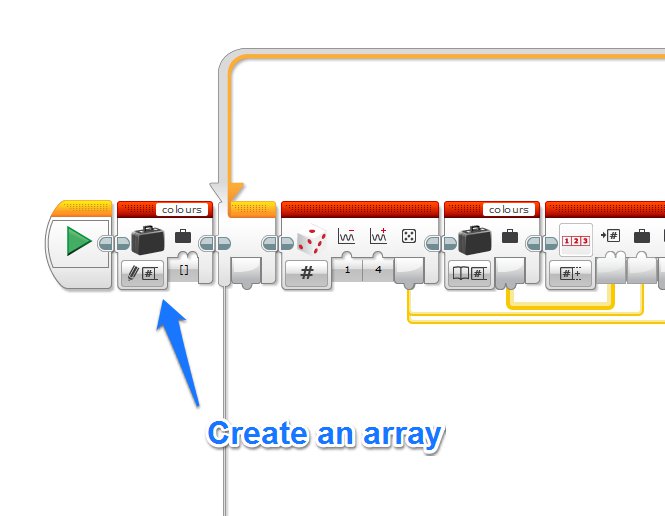
We then generate a random number between 1-4 (I’m only using 4 colours at the moment). This random number is appended to the Array. As there is nothing yet in our array, this means it will be put in at array index 1. (NB. Arrays in EV3-G are numbered from 1, which is different other programming languages with often begin numbering at 0. There were long and intense debates around the reasoning for this which I won’t get into!).
If the number is a 1, the EV3 will say ‘Black’. A 2 will give ‘Blue’, 3 will give ‘Green’ and 4 gives ‘Yellow’.
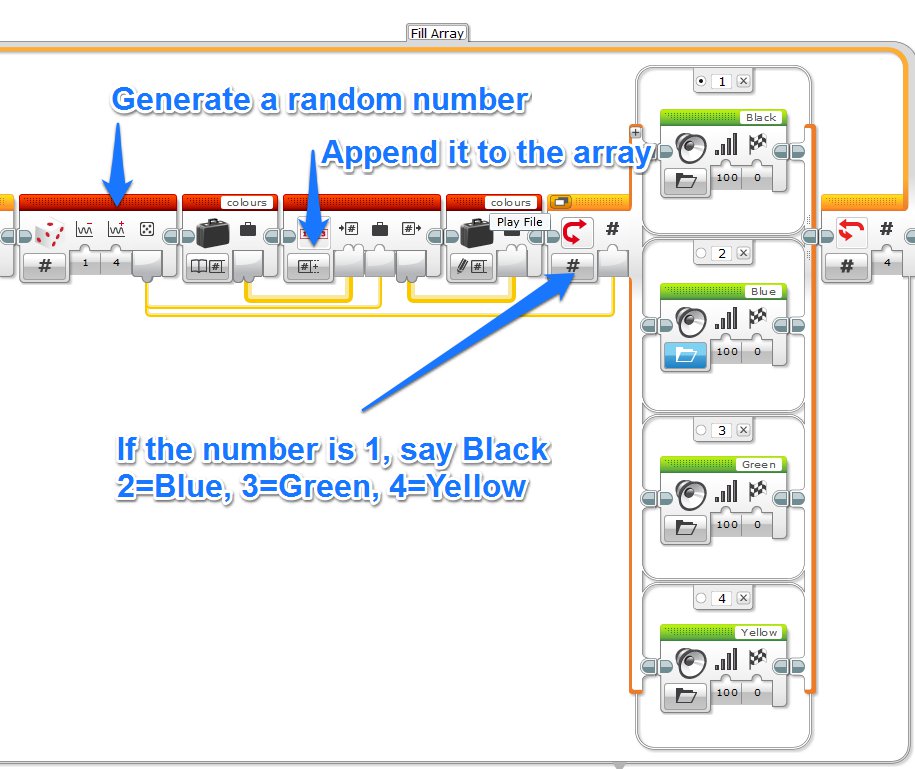
Rinse and repeat 4 times (don’t want to make the sequence too long). Each time it repeats, the ‘append’ function adds a new random number to the end of the array.
Checking the colours
Once the EV3 has said its sequence of colours, it moves into checking mode.
Firstly it waits for a colour to be detected. Any colour will do, just so long as it is not ‘no colour’. It then waits for half a second to make sure the colour paddle has settled into place. This is needed to make sure the colour sensor doesn’t pick up a bunch of random colours as the paddle comes down over the top.
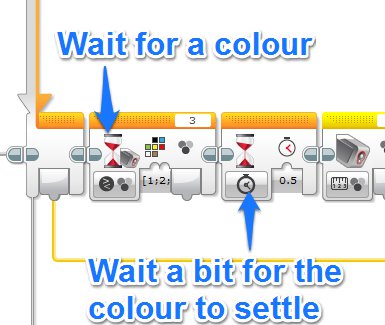
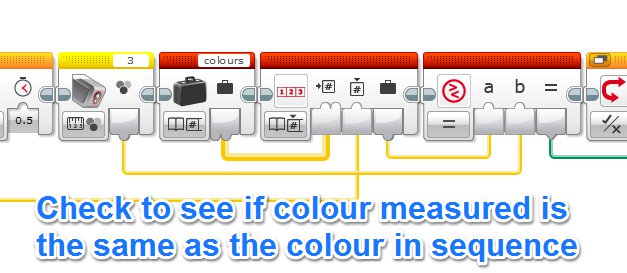
We then read the actual colour so we can check it against our sequence. After that we need to check against our array. We use the loop counter plug which keeps track of how many times we’ve been through the loop. The first time through the loop, the loop counter is ‘1’, which means when we use the ‘Read at Index’ block, it will tell us what number is in the 1st position of our array.
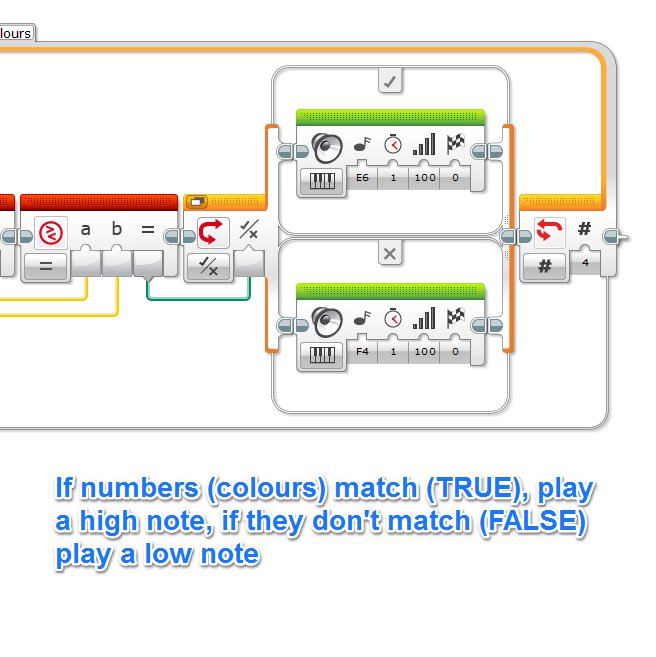
We send this number from the array along with the colour measured from the Colour Sensor block (which will be in the form of a number) through to a ‘Compare Block’ which will give us either a TRUE (colours match) or FALSE (colours don’t match).
A Logic Switch uses this information to play a High note if it is TRUE and a low note if it is FALSE. Repeat 4 times to match the length of the sequence.
Added bonus
This is the basics behind the game. In the video I added a score using a variable that incremented. I also used the Medium motor to turn a simple dial to indicate the score going up. I’ll leave that up to you to figure out 🙂
If you make some cool modification, please let me know!